Importing groups from ETS
How to export groups from ETS to a .esf file and import them into Ilevia Manager to associate them with components.
Introduction
Importing ETS groups speeds up the component configuration process within the Ilevia project. To import the entire project from a .knxproj file, see the guide Importing an ETS project into Ilevia Manager.
Import procedure
Step 1:
To begin, we will export the project from ETS, then import it into Ilevia Manager.
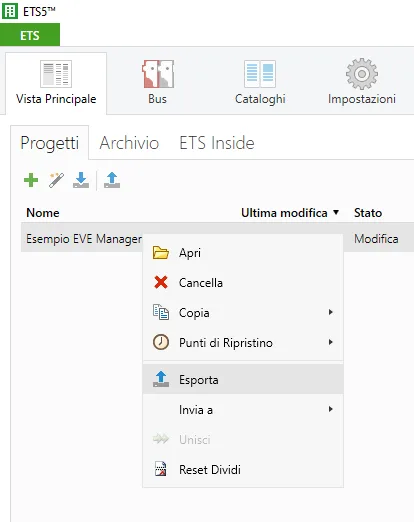
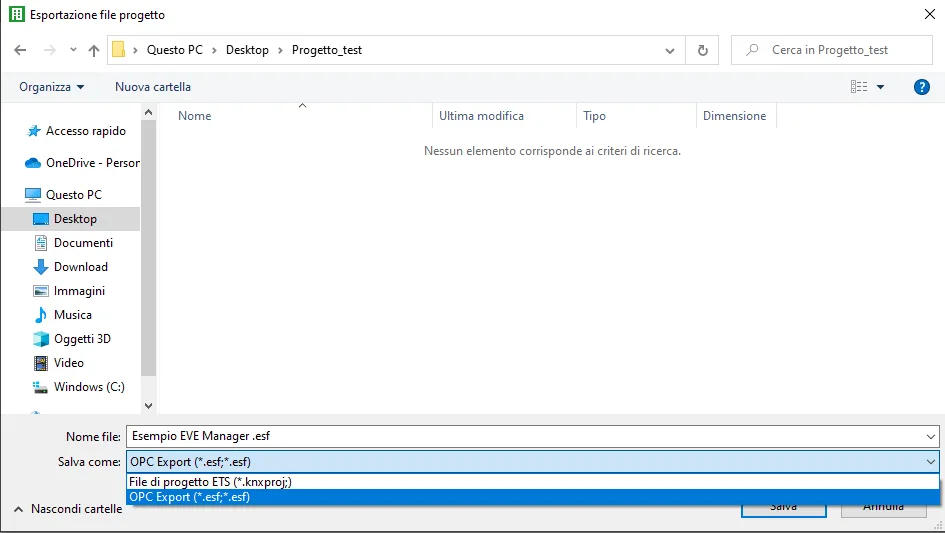
Right-click the selected project, choose Export, then save it in a folder of your choice with the .esf (OPC EXPORT) extension.
Step 2:
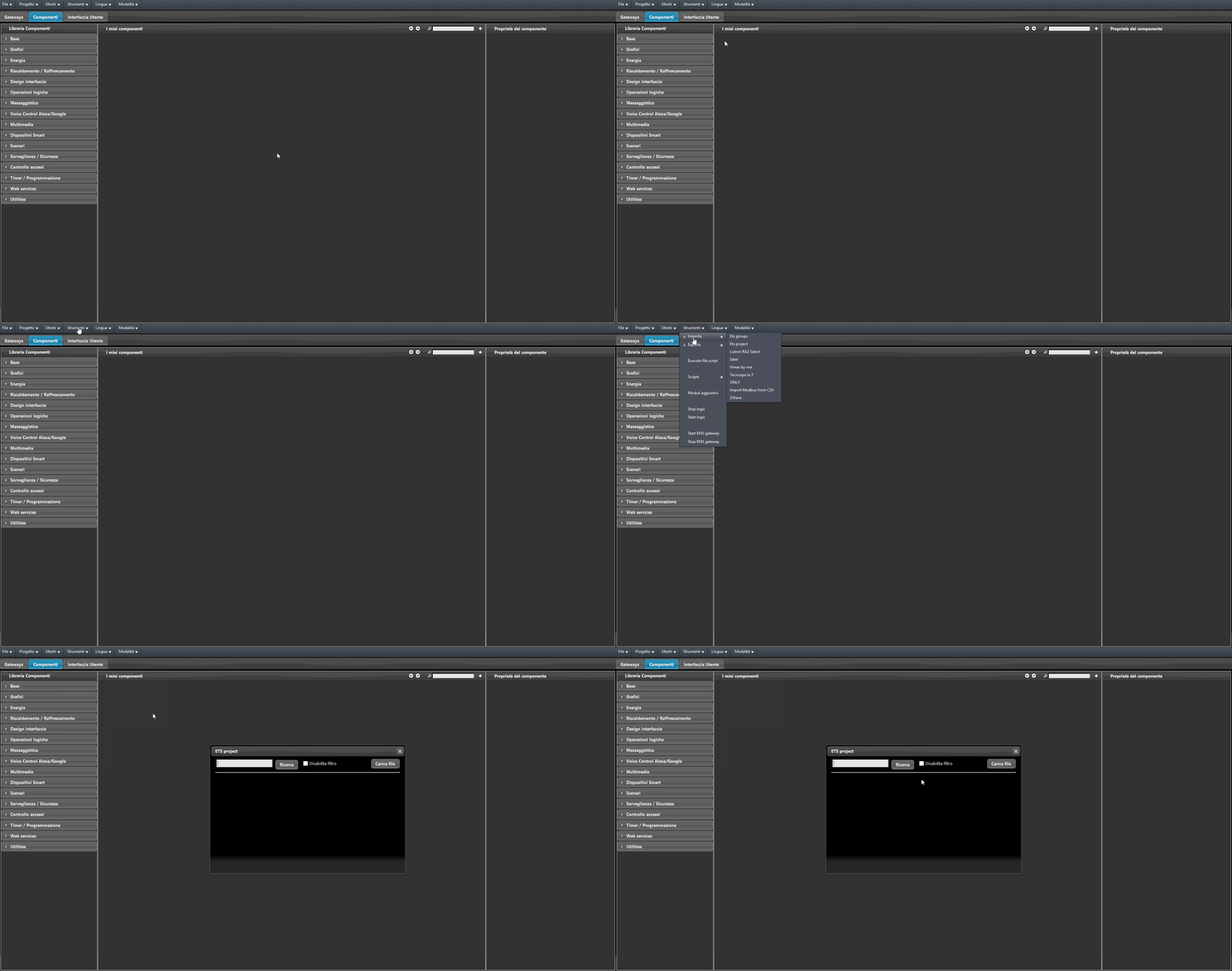
Go to Ilevia Manager, open the “Tools” menu and select “Import” -> “ETS groups”.
Step 3:
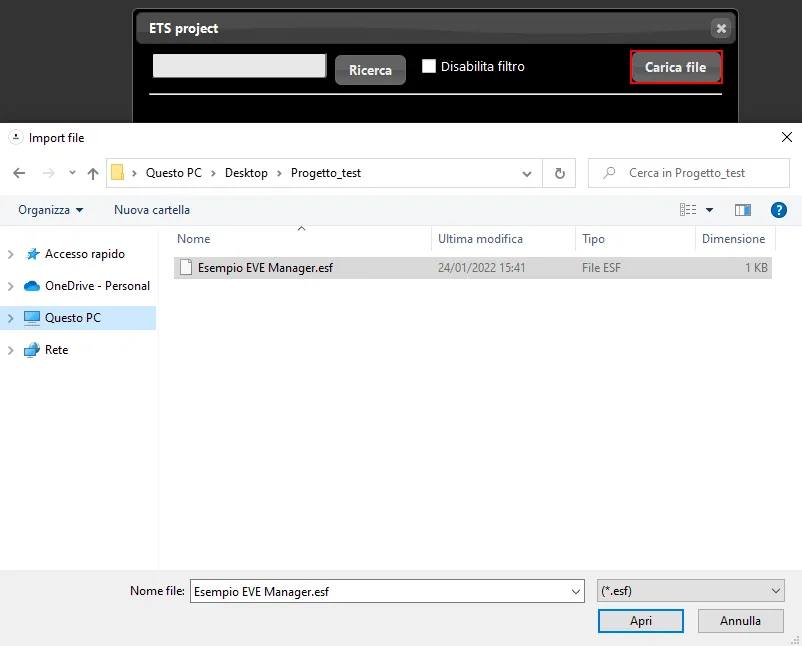
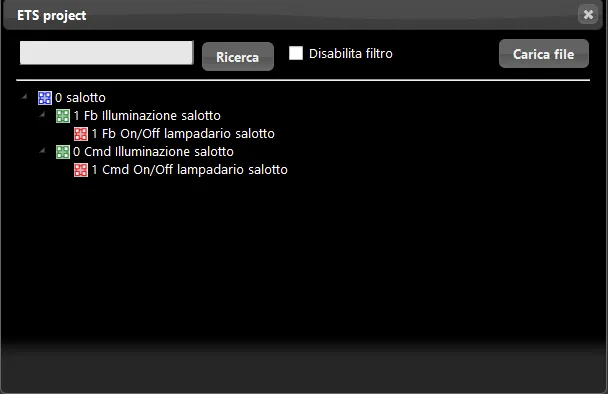
Upload the .esf file by clicking “Upload”: the list of group addresses from the ETS project will be displayed in the import window.
Step 4:
Now select the component you want to configure in the “My components” section.
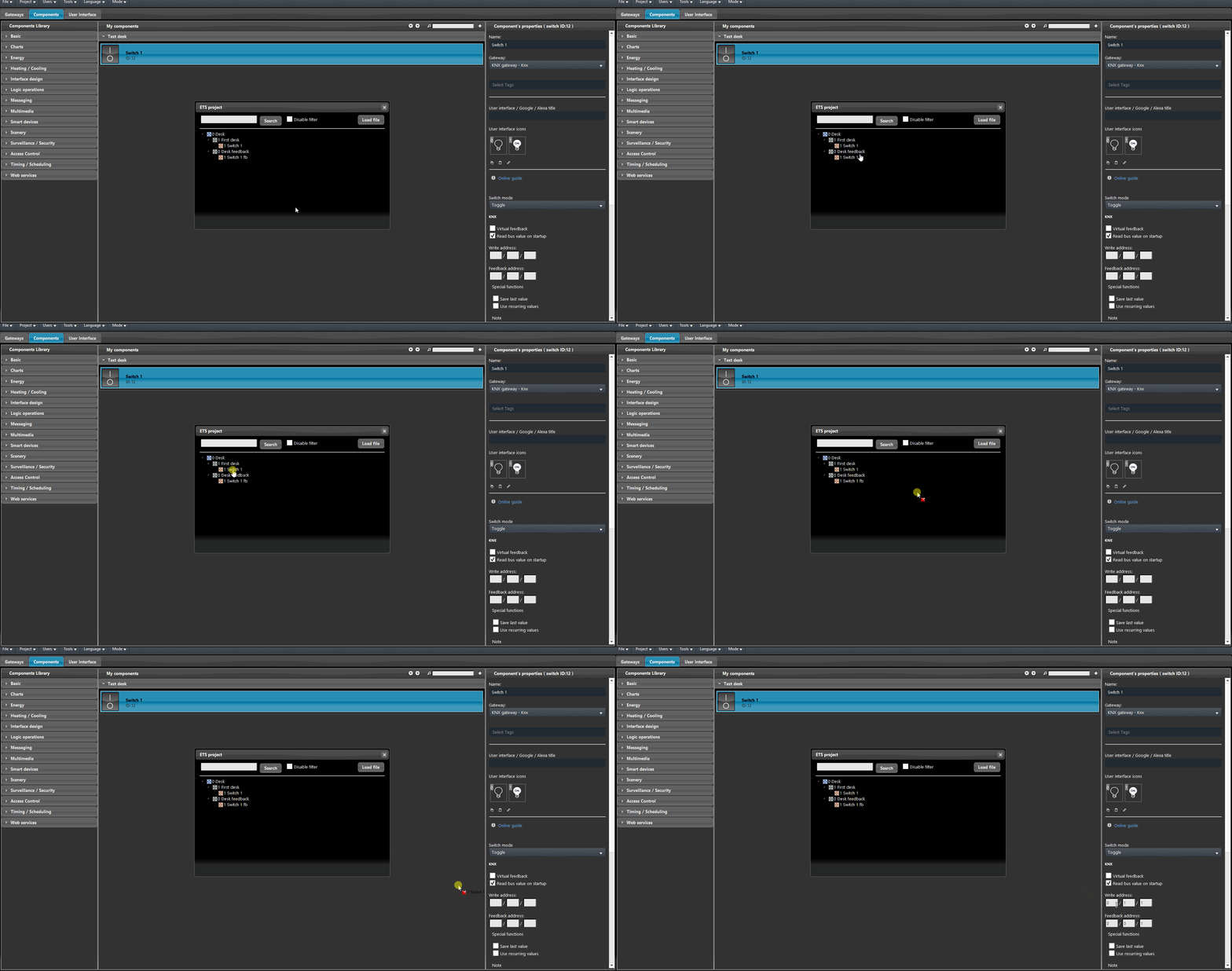
Drag and drop the addresses from the ETS project window to the corresponding component created in the Ilevia Manager project.