
Weather station
The Weather station component in Ilevia Manager: parameters (coordinates, temperature, wind, precipitation), setup and insertion in the user interface.
Introduction
The Weather station component allows you to forecast the weather conditions of the selected location using the entered coordinates.
Use cases
The user wants a precipitation forecast in order to schedule irrigation.
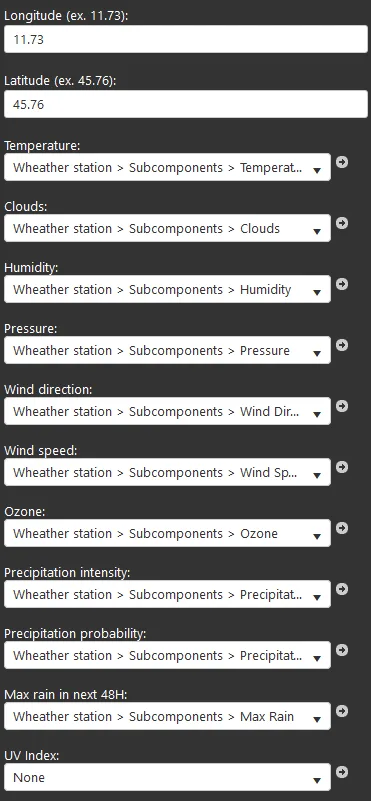
Component properties
Component title and icon can be customized. See the “Common properties” guide.
Longitude (empty field): the longitude of your location, for example 11.73;
Latitude (empty field): the latitude of your location, for example 45.76;
Temperature (options list): the current temperature of the selected location, in °C;
Clouds (options list): the percentage of cloud cover at the selected location;
Humidity (options list): humidity expressed in %;
Pressure (options list): pressure expressed in hPa;
Wind direction (options list): wind direction;
Wind speed (options list): wind speed in m/s;
Nitrogen (options list): the amount of nitrogen;
Precipitation intensity (options list): the amount of rain expressed in mm;
Precipitation probability (options list): the probability of precipitation expressed in %;
Rain in the next 48H (options list): the amount of rain forecast for the next 48 hours, expressed in mm.
Weather station setup
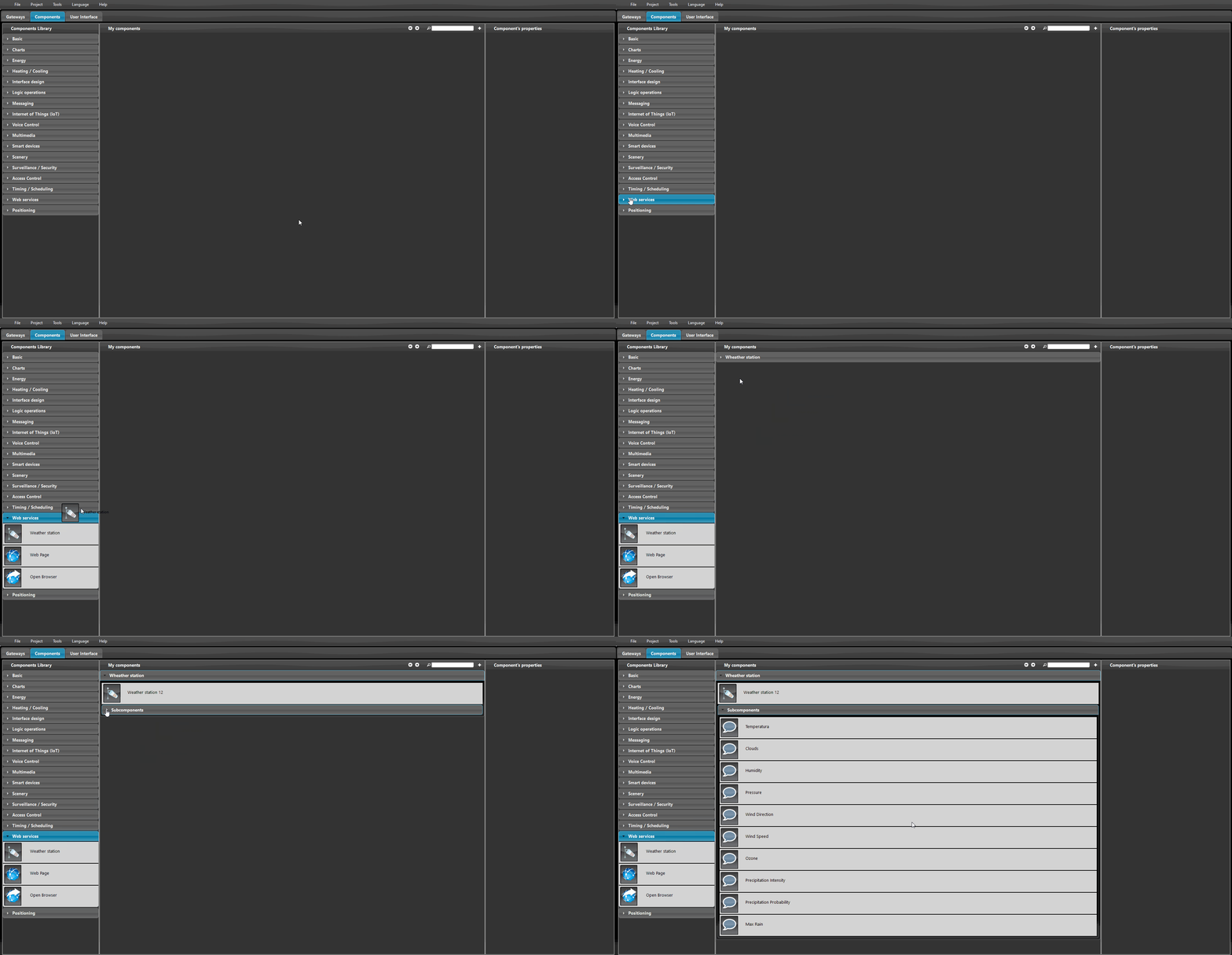
To set up the weather station, drag the “Weather station” component into the “Components” section, then enter the longitude and latitude of your city and create the user interface as described below.
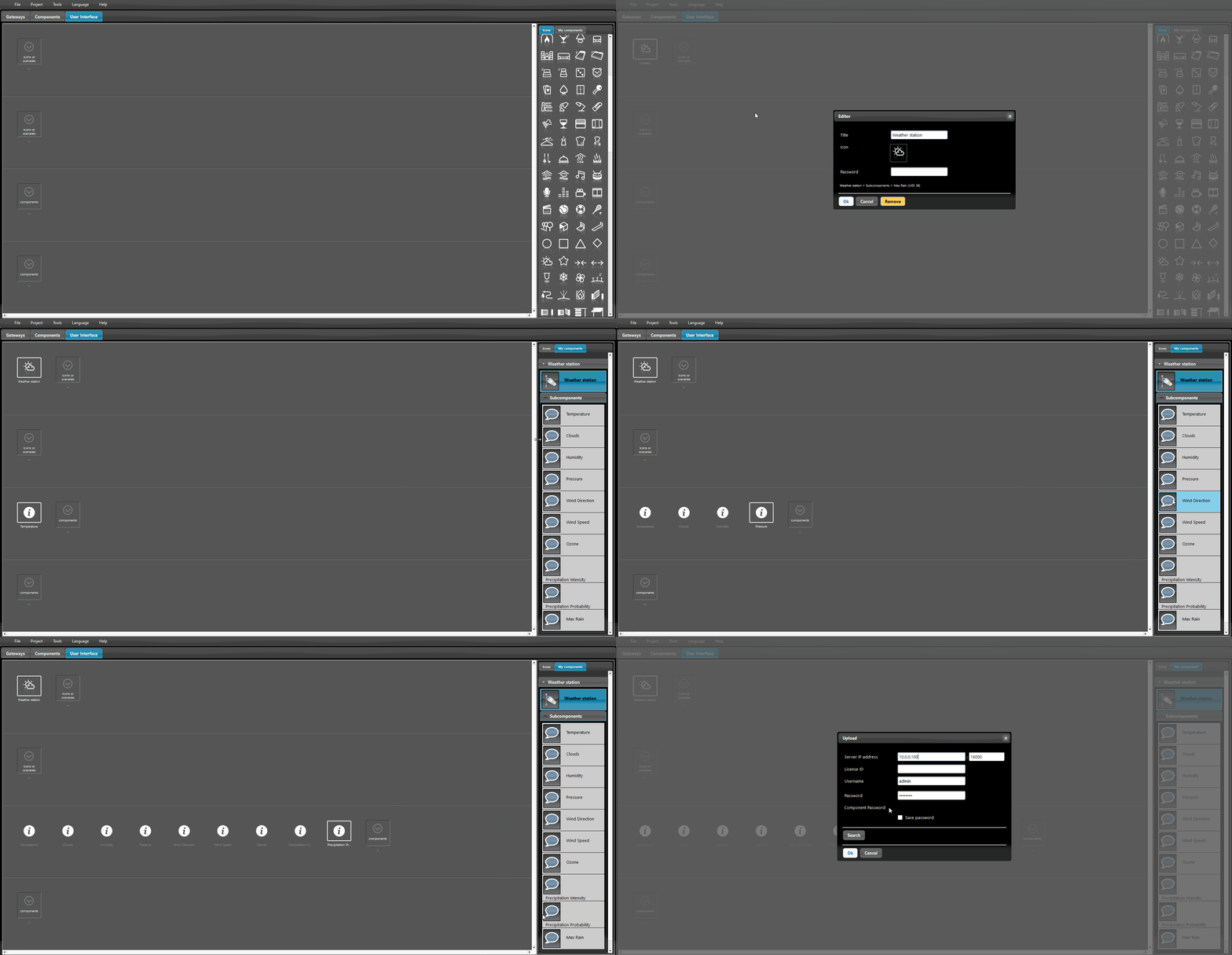
Choose the icon you prefer and add all Info components to the component created automatically earlier. Then upload the project to the server to complete the setup.
There are three possible display modes: “CLASSIC”, “MODAL” and “HIDDEN”. For more information, see the “Common properties” guide.