
Direct connection of the X1 server to the PC
How to connect the Ilevia X1 server directly to the PC with an Ethernet cable, without a router, by setting a static IP address on Windows.
Introduction
With the Ilevia X1 server, it is possible to establish a direct network connection to your laptop, without using a router. This guide explains every necessary step. The procedure makes it possible to communicate with and program the X1 server even without a router or LAN network.
Procedure
Step 1:
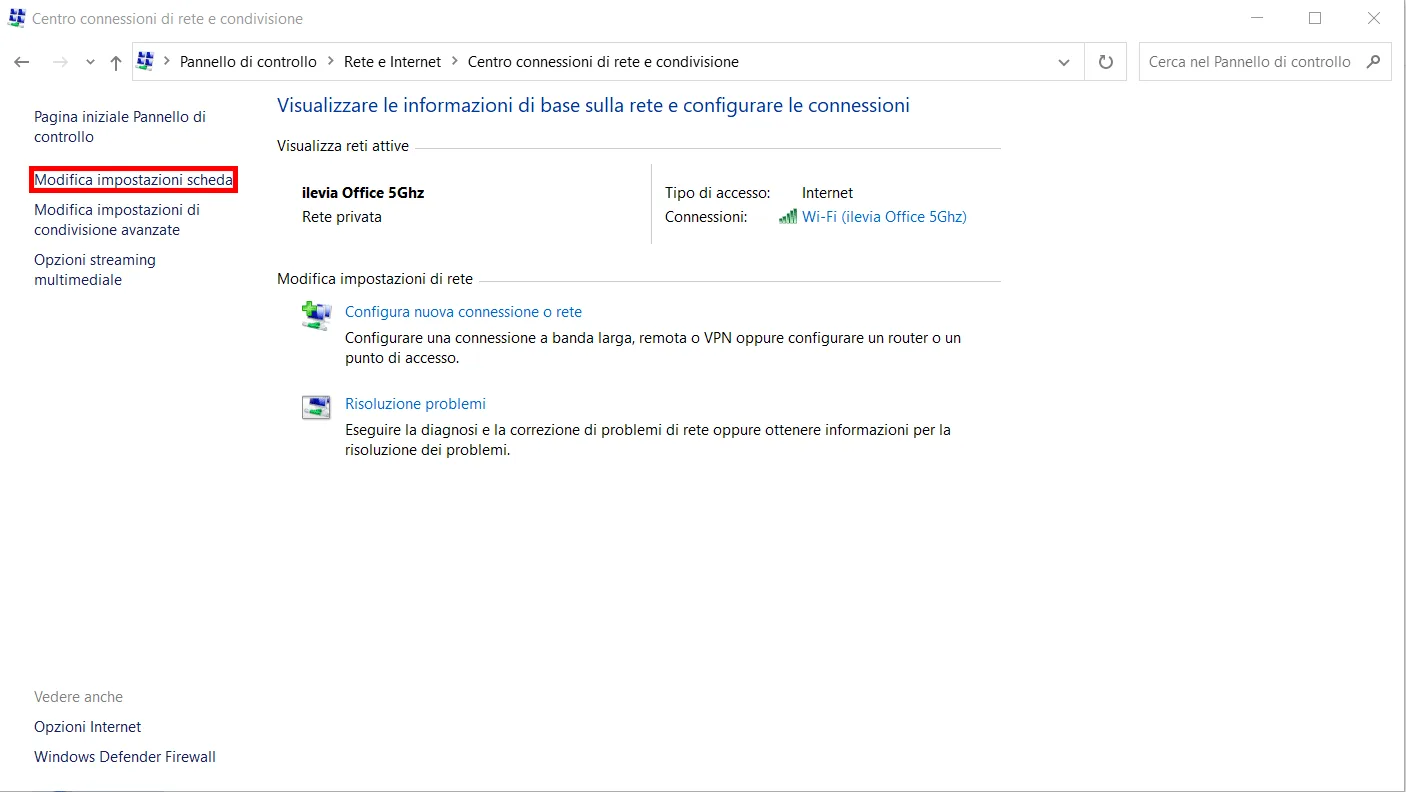
Open the network adapter settings: from Control Panel go to Network and Internet, then click Network and Sharing Center and finally Change adapter settings.
Step 2:
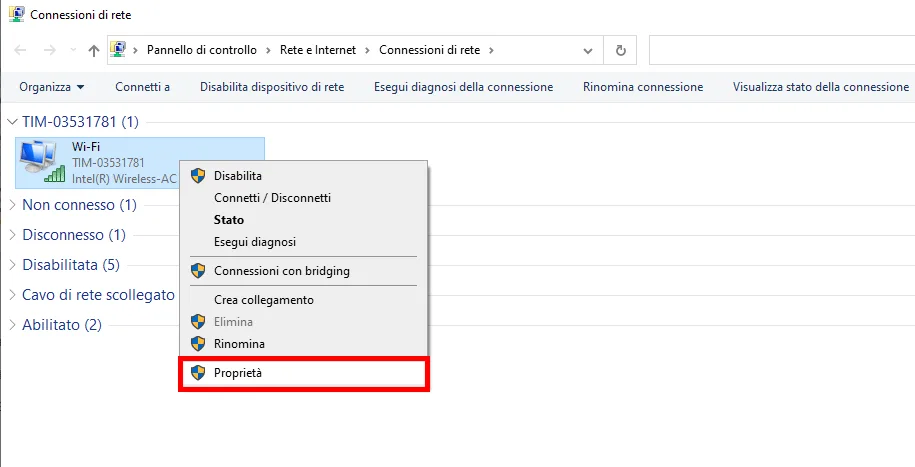
Change the IP address settings of the network adapter from DHCP to static: right-click the adapter and choose Properties.
Step 3:
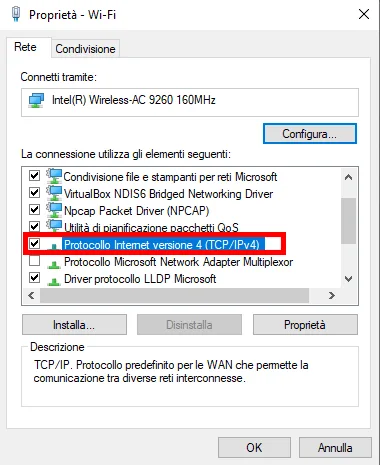
Once in the adapter settings, open the setting called Internet Protocol Version 4.
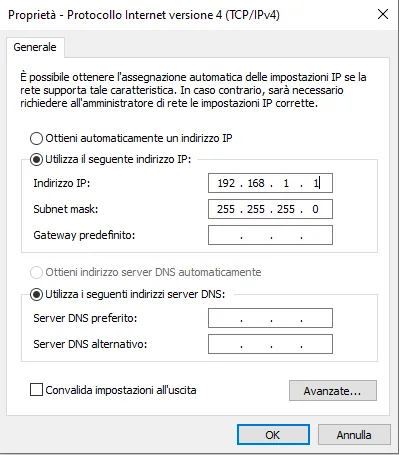
Step 4: now select “Use the following IP address”: this allows you to enter the static IP address to assign to your device.
Connection
Once all the steps are completed, connect the X1 server to the laptop’s Ethernet port and power on the server. Now, by entering the default IP address 192.168.1.100 in the browser, you will be automatically directed to the server’s web interface.