
Installation of the Ilevia X5 virtual machine
How to install the Ilevia X5 virtual machine on your computer using the Oracle VirtualBox virtualization software.
Introduction
The Ilevia Suite for Virtual Machine software can be downloaded free of charge, but it is subject to a validity limit of 168 hours (7 days).
Procedure
Follow the steps below:
Step 1: Download the Firmware Server for Virtual Machine;
Step 2: Extract the .ova file from the compressed folder;
Step 3: Download the virtualization software Oracle VirtualBox and install it;
Step 4: Start Oracle VM VirtualBox and import the .ova file into the software (File > Import Virtual Appliance > file selection);
Step 5: In the options list, select “Generate new MAC address for all network adapters” and import the file;
Step 6: Set up ILEVIA-X5 according to your network configuration (Settings > Network);
Step 7: Start the ILEVIA-X5 virtual machine and wait a couple of minutes.
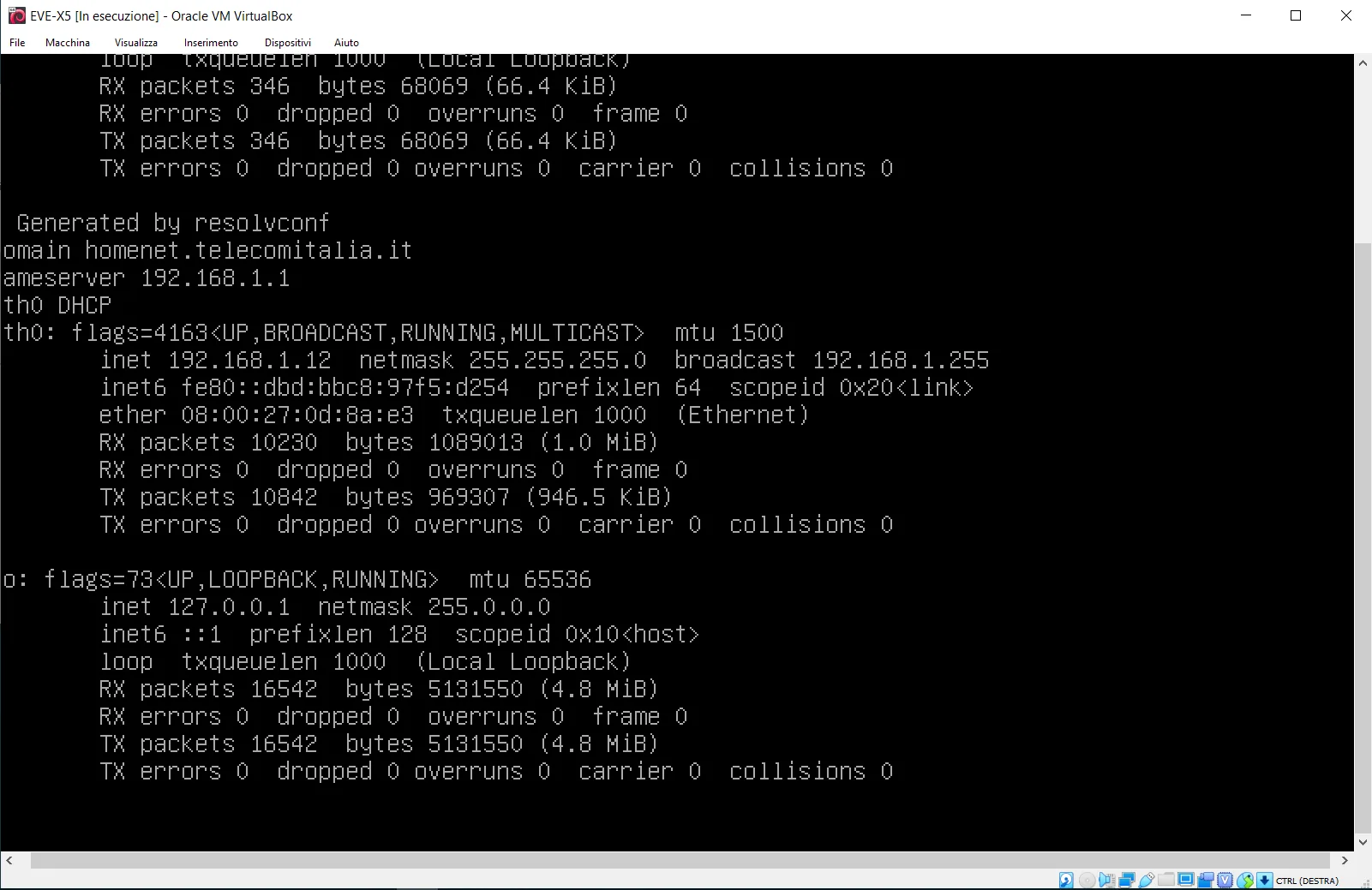
The image shows what will be displayed on your computer once the VM installation is complete.
Congratulations! Your ILEVIA-Server is now running correctly. You can start configuring your project!