
Virtual machine firmware update
How to update the firmware of the Ilevia X5 virtual machine from its web interface.
This guide explains how to update the firmware of the Ilevia X5 virtual machine from the web configuration interface.
Procedure
Follow the steps below:
Step 1: Start the virtual machine from your virtualizer;
Step 2: Open a browser page;
Step 3: Type http://www.ilevia.com/evelocalip.php in the address bar;
The browser will display a list of the IP addresses of all servers connected to the local network. If there is only one Ilevia server on the network, you will be automatically redirected to that server’s web configuration interface. In the login panel you will find the most important server information: firmware version, license status, public IP address, and MAC address.
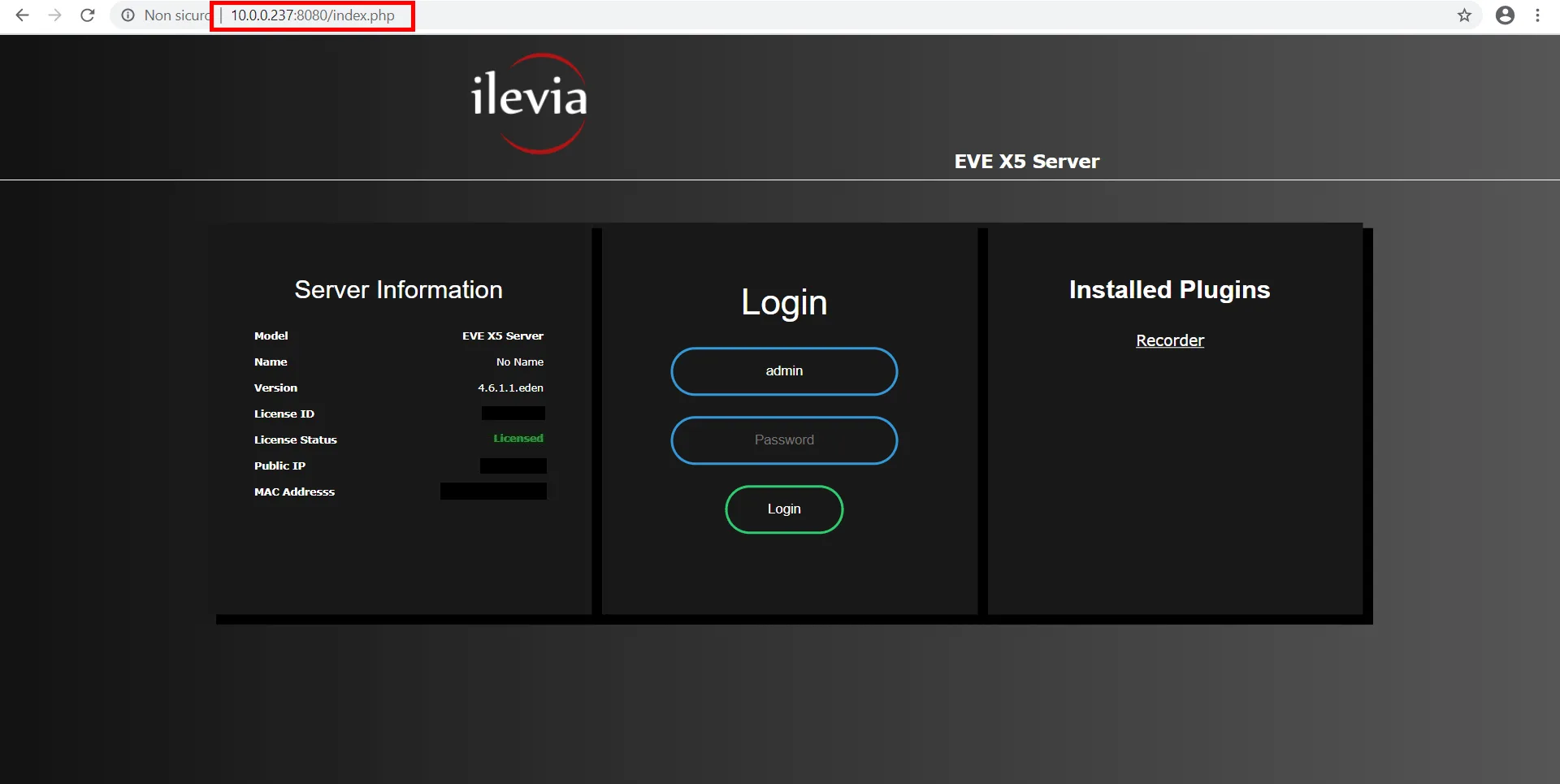
Step 4: Enter the credentials in the corresponding text fields (default credentials: Username: admin / Password: password; it is recommended to change them after initial setup).
Once logged in, the navigation menu will be displayed.
Step 5: Open the Utility menu and click Check now to search for firmware updates online.
Step 6: If a new firmware version is available, click Update.
Step 7: Wait a couple of minutes for the system to restart, then log in using your credentials.
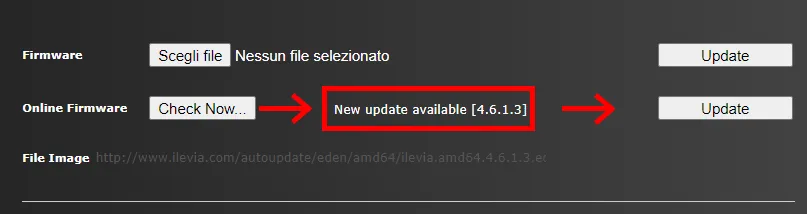
If the system is already updated to the latest available firmware version, a message will be displayed.
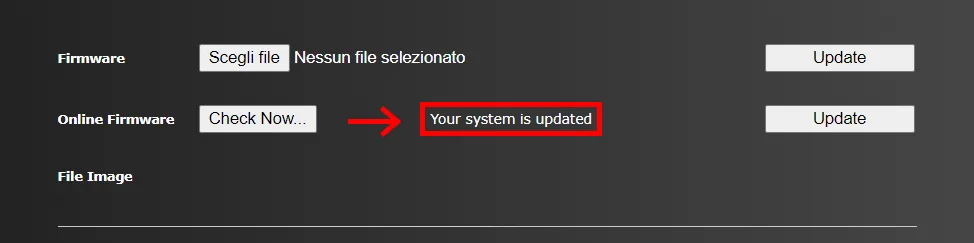
Congratulations! Your system is now updated to the latest version.