
Virtual machine license activation
How to extend the Trial license of an Ilevia virtual machine or a Raspberry Pi and convert it into a lifetime license.
Introduction
This guide explains how to extend a Trial license and convert it into a lifetime license. The procedure applies to virtual machine and Raspberry Pi licenses.
Note: license activation is not required if you purchase the Ilevia X1 server, which is sold with a lifetime software license already included.
Procedure
Follow these steps:
Step 1: start the virtual machine;
Step 2: wait for the virtual machine to start;
Step 3: open a new tab in the browser;
Step 4: enter http://www.ilevia.com/evelocalip.php in the address bar.
The browser shows a list of the IP addresses of all servers connected to the local network. If there is only one Ilevia server on the network, you are automatically redirected to that server’s web configuration interface. In the login panel you will find the most important information about the server: firmware version, license status, public IP address, and MAC address.
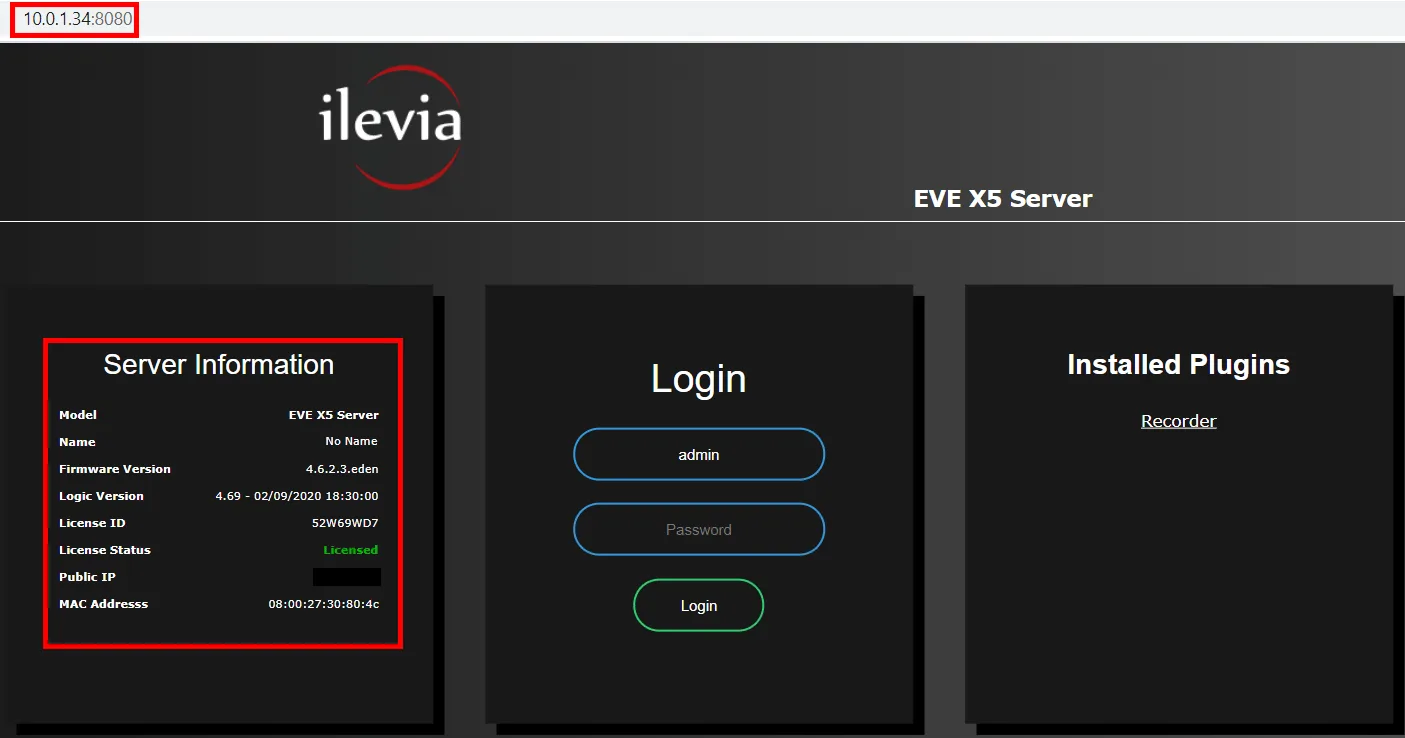
Step 5: enter the credentials in the appropriate text fields (default credentials: Username: admin / Password: password);
Step 6: once logged in, click the Infos menu to view the general server information;
Step 7: send an e-mail to our Technical Support, including your server’s License ID;
Step 8: wait for our reply before proceeding with the next steps;
Step 9: after receiving our activation, wait a couple of minutes, then refresh the page and log in;
Step 10: open the Infos menu. When the license is activated, the License status entry shows “Licensed”.
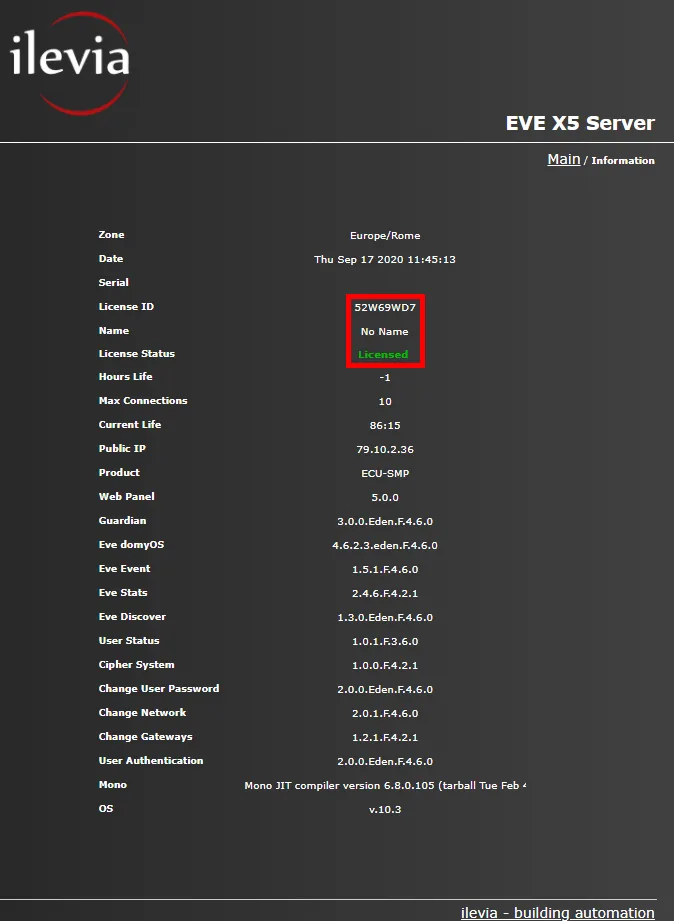
Congratulations! Your trial license has been converted into a lifetime license.