Connection to the virtual machine server from Ilevia Manager
How to connect Ilevia Manager to the Ilevia X5 virtual machine server by searching it on the local network and entering the credentials.
Introduction
Start the virtual machine from the virtualization software and wait for it to boot: startup is correct if the IP address is shown in the network adapter parameters of the virtual machine. This guide explains how to connect Ilevia Manager to the virtual machine server (X5).
Connection to the server (via router)
Follow the procedure:
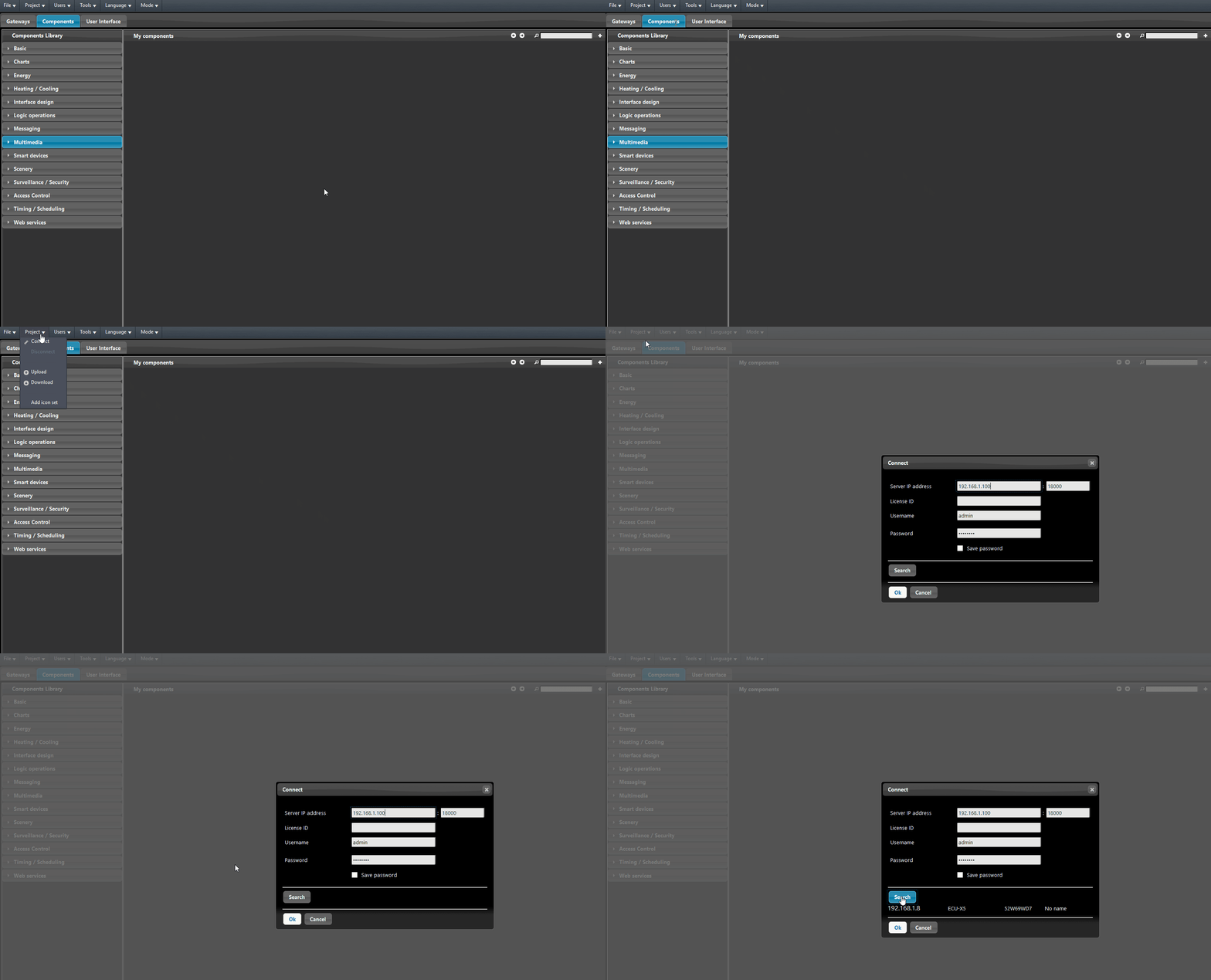
Step 1: open the Ilevia Manager configuration software (to download it, click the following link: download Ilevia Manager);
Step 2: select Project from the top menu, then click Connect. A new window appears in the center of the screen;
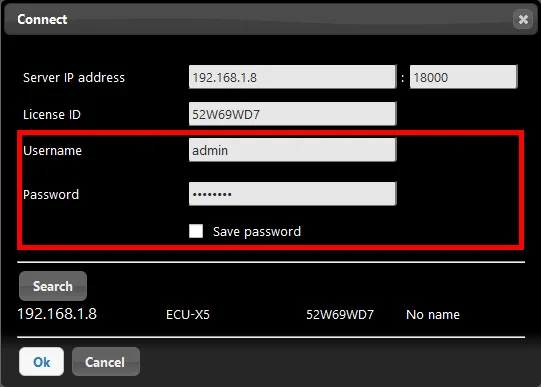
Step 3: click the Search button to find the server on your local network. The server details are displayed in the area below.
Can't find the server?
Use this link: the browser opens and shows a list of the IP addresses of all Ilevia servers present on the network. If there is only one Ilevia server on the local network, the link takes you directly to that server's web configuration panel. Copy the IP address from the URL bar and paste it into the Server IP address text field in the dialog box in Ilevia Manager.
Step 4: click the IP address of your server in the list that appears in the dialog box;
Step 5: enter the credentials in the appropriate text fields and click OK (default credentials: Username: admin / Password: password).