
Custom widget component script
Typical script structure for the Custom widget component: variables, functions, and triggers that link the components to the elements in the SVG file.
Introduction
This guide explains how to configure the JavaScript script to connect the Custom widget component to components such as Set point, Info, Switches, Drop down, etc. and to the SVG file selected in the component properties. The script obviously changes depending on the structure and function of your SVG file.
Script variables
These are the variables that make up the script. The variables do not necessarily have to use the same name and ID as the components: what follows is only an example of what can be achieved with a JavaScript script.
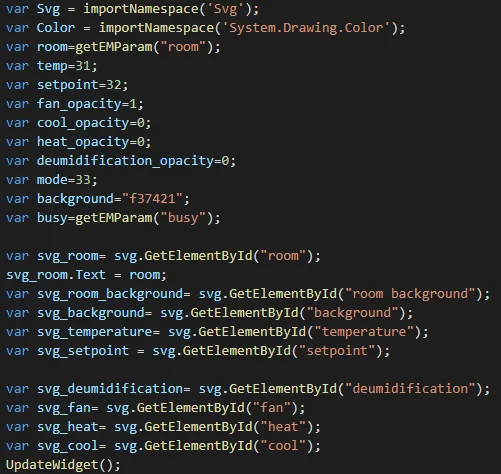
var Svg: this variable contains the name of the SVG file.
var color: this variable contains a color used by the script.
Component variables
var room: this variable takes the room number set in the JSON field of the Custom widget component properties.
var temp: this variable takes the value of the component with ID 31, which in our case is an Info component representing a temperature.
var Setpoint: this variable takes the value of the component with ID 32, which in our case is a Setpoint component.
var fan_opacity: this variable has 1 as the default value. In our case it is linked to an icon in the SVG file.
var deumidification_opacity: this variable has 1 as the default value. In our case it is linked to an icon in the SVG file.
var cool_opacity: this variable has 0 as the default value. In our case it is linked to an icon in the SVG file.
var heat_opacity: this variable has 0 as the default value. In our case it is linked to an icon in the SVG file.
var mode: this variable takes the value of the component with ID 33, which in our case is an Option list component.
var background: this variable sets the background color of the SVG file.
Variables for linking to SVG file elements
var svg_room: this variable creates a link with the SVG file element that contains the room number;
svg_room.Text: this instruction applies the value to the text of the SVG file element;
var svg_room_background: this variable creates a link with the “room background” element of the SVG file;
var svg_background: this variable creates a link with the “background” element of the SVG file;
var svg_Temperature: this variable creates a link with the “Temperature” element of the SVG file;
var svg_Setpoint: this variable creates a link with the “Setpoint” element of the SVG file;
var svg_deumidification: this variable creates a link with the “deumidification” element of the SVG file;
var svg_fan: this variable creates a link with the “fan” element of the SVG file;
var svg_heat: this variable creates a link with the “heat” element of the SVG file;
var svg_cool: this variable creates a link with the “Cool” element of the SVG file.
UpdateWidget(): this instruction updates the widget element when executed on the server.
Script functions
These are the functions used to change the values of the SVG image elements within the user interface.
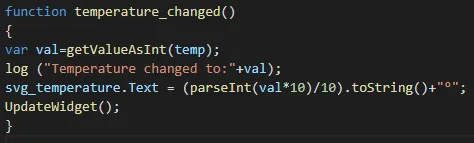
Function temperature_changed
var val = getValueAsInt(temp): this variable gets the current value of the temp variable.
log (“Temperature changed to:”+val): this log prints the string “Temperature changed to:” followed by the value of the “val” variable.
svg_temperature.Text = (parseInt(val*10)/10).toString()+”°”: this instruction writes the temperature value to the svg_temperature element, rounded to one decimal place and followed by the degree symbol.
UpdateWidget(): this instruction updates the widget element when executed on the server.
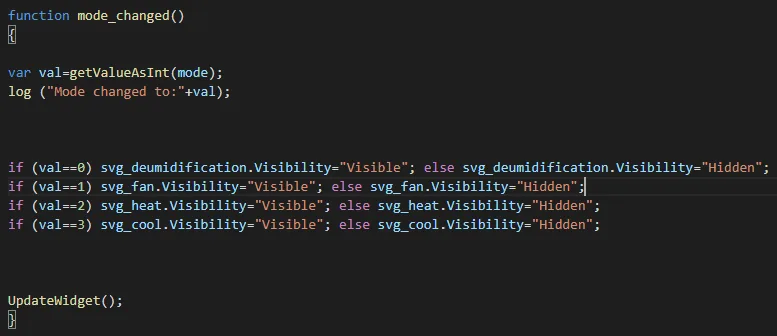
Function mode_changed
var val = getValueAsInt(mode): this variable gets the current value of the “mode” variable.
log (“Mode changed to:”+val): this log prints the string “Mode changed to:” followed by the value of the “val” variable.
1st if: if the value of the Option list component is 0, the deumidification icon will be visible;
2nd if: if the value of the Option list component is 1, the fan icon will be visible in the interface, otherwise it will remain hidden;
3rd if: if the value of the Option list component is 2, the heat icon will be visible in the interface, otherwise it will remain hidden;
4th if: if the value of the Option list component is 3, the cool icon will be visible in the interface, otherwise it will remain hidden.
UpdateWidget(): this instruction updates the widget element when executed on the server.
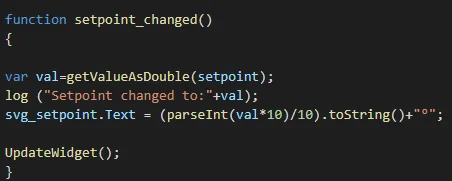
Function setpoint_changed
var val = getValueAsDouble(setpoint): this variable gets the value of the “setpoint” variable;
log (“Setpoint changed to:”+val): this log prints the string “Setpoint changed to:” followed by the value of the variable “val”;
svg_setpoint.Text = (parseInt(val*10)/10).toString()+“°”: this instruction writes the setpoint value to the svg_setpoint element, rounded to one decimal place and followed by the degree symbol.
UpdateWidget(): this instruction updates the widget element when it is executed within the server.
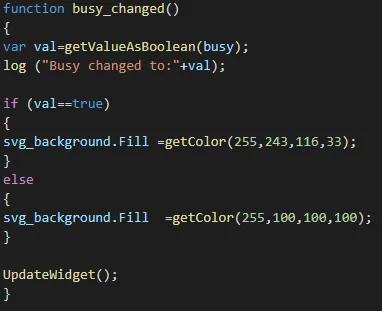
Function busy_changed
var val = getValueAsBoolean(busy): this variable retrieves the value of “busy”.
log (“Busy changed to:”+val): this log prints the string “Busy changed to:” followed by the current value of the variable “val”.
If – Else: if the value of the variable “val” is true, the color specified in svg_background.Fill is set as the background color of the SVG element in the user interface; otherwise (else) the other color is set.
UpdateWidget(): this instruction updates the widget element when it is executed within the server.
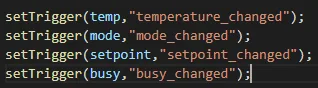
setTrigger
setTrigger(temp,”temperature_changed”): this instruction makes the function “temperature_changed” run;
setTrigger(mode,”mode_changed”): this instruction makes the function “mode_changed” run;
setTrigger(setpoint,”setpoint_changed”): this instruction makes the function “setpoint_changed” run;
setTrigger(busy,”busy_changed”): this instruction makes the function “busy_changed” run.